Identity Center
About IAM Identity Center
Identity Center used to be known as AWS SSO, and this gives us a hint about what the service is and what it does (if you're familiar with the concept of Single Sign-On).
Identity Center enables organizations to set up a single sign-on (SSO) experience for their users, allowing them to access multiple AWS accounts and applications using a single set of credentials. This essentially aims to replace the need for IAM Users in most circumstances, and is the preferred approach.
It's a service that centralizes user identity access management for AWS resources and applications, especially (but not limited to) when dealing with multiple AWS accounts. It can make it easier to manage user access to various AWS accounts and even third-party applications.
Identity Sources
You can use three types of identity sources:
- Identity Center directory - this is the default identity source when enabling Identity Center, and its the AWS-native approach. Recommended for individuals and small businesses, unless you are already using AD or an external IdP. The easiest to setup.
- Active Directory - Recommended if your organization uses AWS Managed Microsoft Active Directory or a self-managed AD installation.
- External identity provider - Recommended if your organization uses something like Okta or Microsoft Entra ID
Once set up, your users can use an AWS access portal URL to access their assigned AWS resources and applications. The URL will look something like this: https://cloudsecexample.awsapps.com/start (if using a custom subdomain; otherwise it will look like random characters/digits)
Once you successfully authenticate, you would be presented with the AWS Access Portal that would look like this:
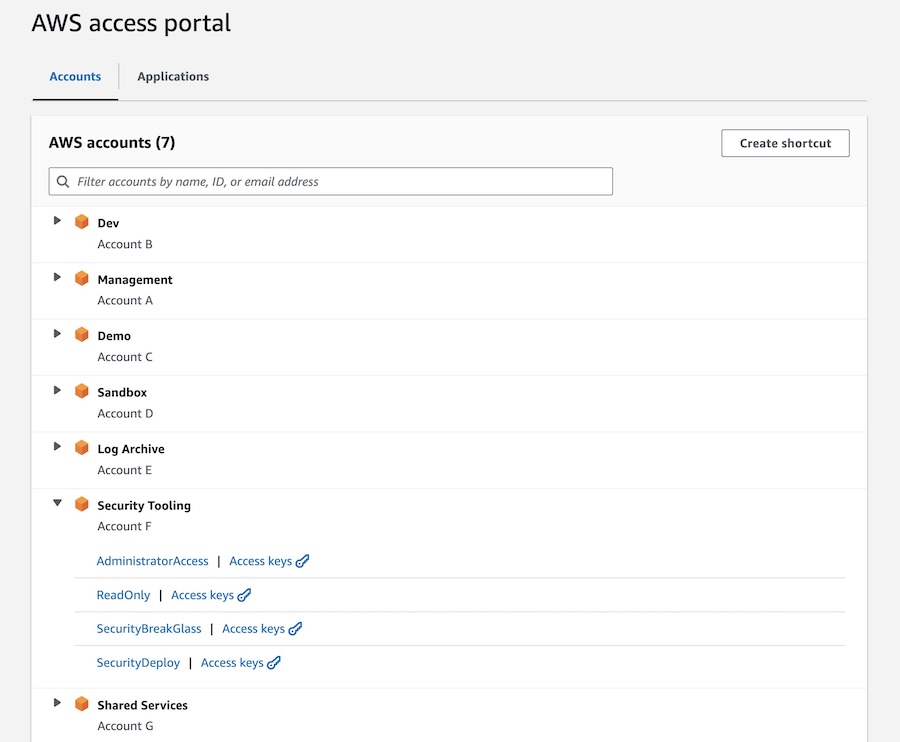
This is much more convenient than logging in as an IAM User, then having to figure out which roles to assume in which accounts. That's not the only benefit, though! Read on for more.
How to enable Identity Center
- In your console, search for and go to "IAM Identity Center"
- Follow the on-screen setup steps, starting with "Confirm your identity source" (refer to the identity source explanation above)
Helpful resources:
-
(Console) AWS temporary credential best practice for developer access - console setup
-
(Terraform) AWS temporary credential best practice for developer access
Benefits of Identity Center Users & Permission Sets over IAM Users
There's often confusion about the differences between IAM Users versus Identity Center Users. It's understandable -- the names are very similar, and they all live under the IAM service. So what are their differences, and when should you use which?
While IAM Users still have some use cases where they make sense to use, the general best practice is moving towards not using IAM Users and instead using Identity Center Users.
There are multiple reasons that it's now the recommended approach:
One reason is because it prevents us from having to create a bunch of users with brand new credentials across our corporate apps and AWS. If your organization is using Microsoft Active Directory, for example, why force your employees to create brand new usernames and passwords to do their jobs in AWS? Why not let them use their existing credentials to then receive temporary credentials that they can assume? That's a big part of what Identity Center offers.
A second reason is that IAM Users need to be created per account, whereas Identity Center identities can be managed in a centralized account to grant access to all of your accounts without re-creating a bunch of users, and once again, having to have a username and password for each user in each account.
A third reason is because once you authenticate through the AWS access portal, you can easily get temporary credentials and you can use those credentials with the AWS CLI or SDKs to access resources in your AWS account(s). It removes the need to set up long-term access keys.
Permission Sets
A core feature that makes Identity Center work is called Permission Sets.
Permission sets are a collection of permissions defined by policies that you can assign to users or groups and that get deployed as roles across your account(s) automatically for you.
The process goes something like this:
- Create a permission set in Identity Center and give it permissions via policies:
- We'll call the permission set
ReadOnly - Give that permission set permissions by assigning an AWS managed policy, a customer managed policy, or an inline policy. (You can also optionally define permissions boundaries.). Let's say we assign it the
ReadOnlyAccessAWS managed policy
- We'll call the permission set
- Create an Identity Center user
- Assign the user to the permission set you just created
- Deploy the permission set(s) to 1 or more AWS account(s)
- AWS displays permission sets as roles in the account(s)
- The user(s) assigned to the permission set can assume the role
ReadOnlythrough the CLI/API or through the AWS access portal for the account(s) that it was deployed into
Behind the scenes, AWS is automatically provisioning the IAM Role and IAM IdP, and this information is immutable which means you can’t change it unless you are changing it through Identity Center.
Identity Center Roles vs. IAM Roles
So Identity Center also makes use of roles, but there are key differences to keep in mind between Identity Center Roles and IAM Roles:
- You have to create IAM roles in each account manually or with a script/IaC. Instead, with permission sets, you tell AWS which accounts to deploy them to and they will automatically create corresponding roles for you.
- IAM Identity Center owns and manages these roles, and only that service can modify the roles. If you try to modify it another way, it will generate an error
- The roles are configured to only be assumed by Identity Center users — IAM Users, IAM federated users (not Identity Center federated users), and service accounts cannot assume these roles
- You can’t edit the trust policies for these roles
So they are still IAM roles, they’re just IAM roles with more restrictions, and for security purposes, that tends to be a benefit in this case.